

Zero Config Render Tracking
No context wrappers. No Babel plugins. No Metro config. Just add
Limelight.connect() and start finding performance issues.How It Works
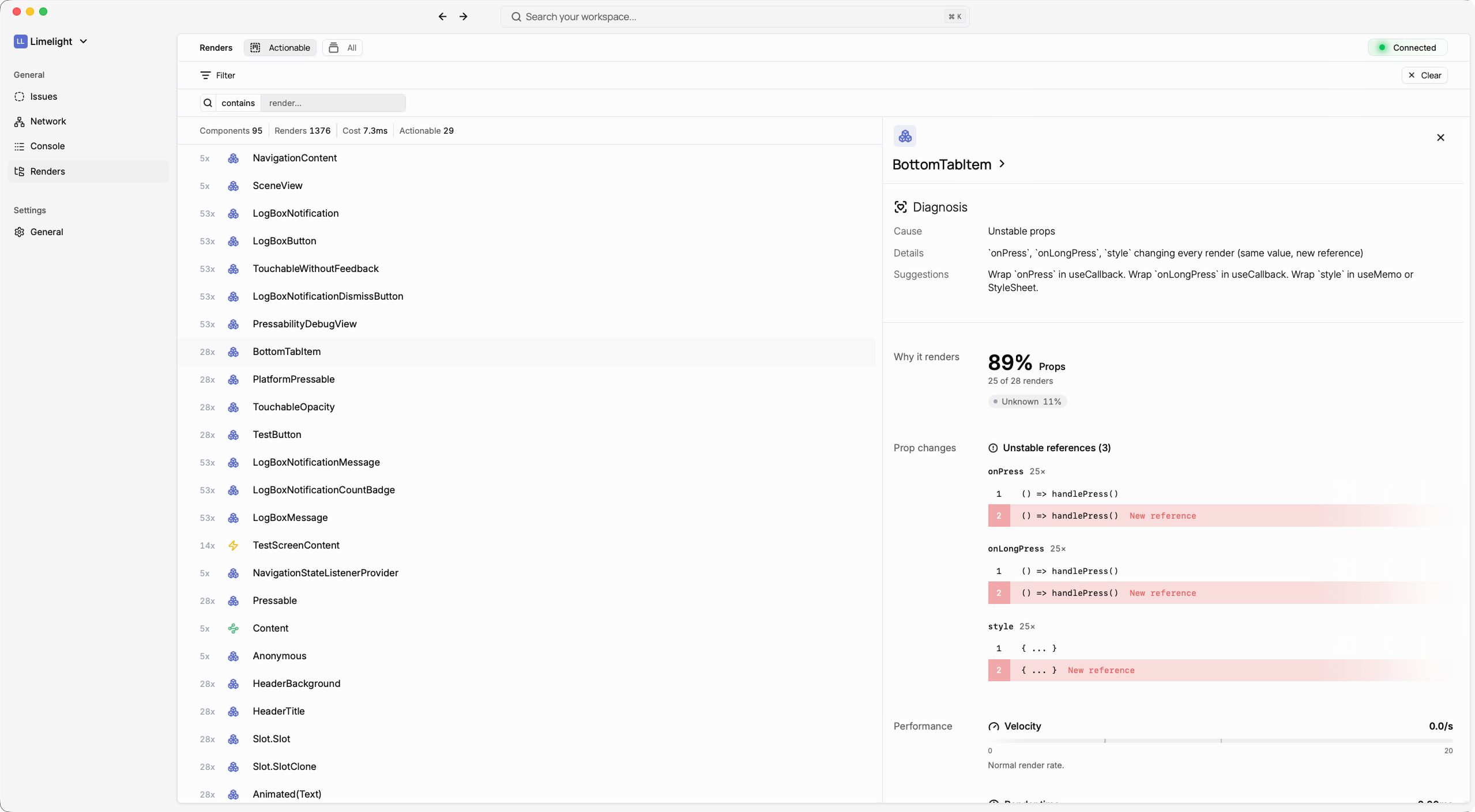
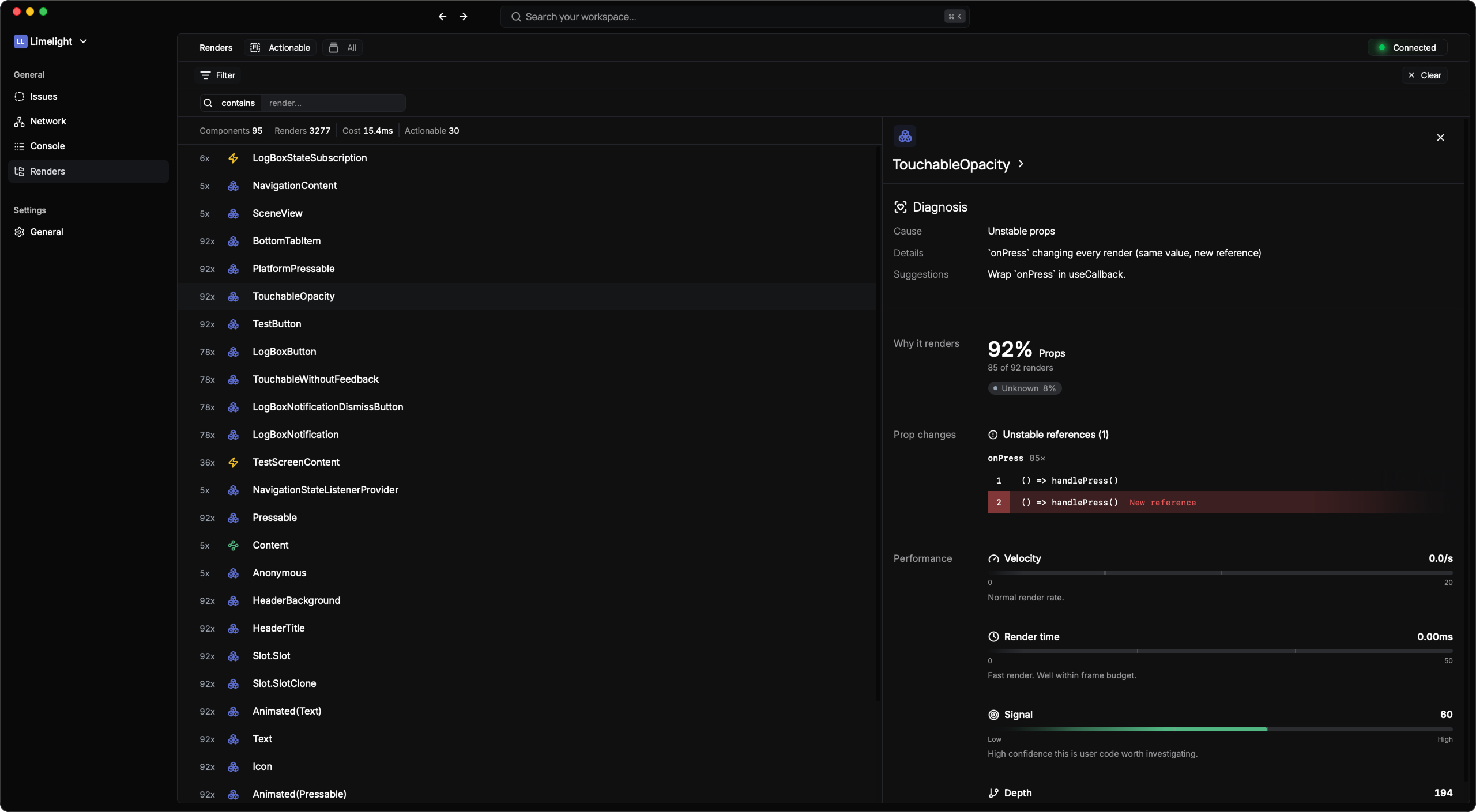
React Fiber Tree Walking
Unlike other render tracking tools that require you to:- ❌ Wrap your app in a context provider
- ❌ Add Babel plugins to your build pipeline
- ❌ Configure Metro bundler
- ❌ Instrument individual components
- Automatic Fiber Tree Detection - Limelight hooks into React’s internal Fiber tree
- Real-time Monitoring - Tracks every component render as it happens
- Zero Runtime Overhead - Minimal performance impact on your app
- No Code Changes - Your components stay untouched
Intelligent Render Analysis
Limelight doesn’t just capture renders—it helps you find the problematic ones.Automatic Ranking Algorithm
Every render is scored based on: Frequency Metrics:- How often the component re-renders
- Re-render rate over time
- Clustering of rapid re-renders
- Component tree depth
- Number of child components affected
- Render duration (when available)
- Renders triggered by parent updates
- Props changes that don’t affect output
- State updates with identical values
Render Severity Levels
Actionable
Excessive re-renders likely causing performance issues
Suspicious
More frequent than typical—worth investigating
Normal
Expected re-renders that are part of normal app flow
Smart Grouping
Instead of showing you hundreds of individual renders, Limelight groups them intelligently:By Component
See all renders for a specific component grouped together:By Render Cause
Understand what’s triggering re-renders:- Props Changed - Which props are changing and causing renders
- State Updated - Local state changes
- Parent Re-rendered - Unnecessary renders from parent updates
- Context Changed - Context value updates
- Force Update - Explicit force updates
By Time Period
Focus on specific moments:- Group renders that happened within the same 100ms window
- Identify render storms (multiple components re-rendering simultaneously)
- Spot cascading re-renders through your component tree
What You’ll See
Render Timeline
Visual timeline showing:- When renders occurred - Precise timestamps
- Which components rendered - Component name and path
- Render clusters - Groups of related renders
- Performance markers - Slow renders highlighted
Render Details
Click any render to see:- Exact timestamp - When it happened
- Trigger source - What caused it (props, state, parent, context)
- Props diff - What props changed (if any)
- Component location - File and line number
- Child renders - How many children re-rendered as a result
Finding Performance Issues
Common Problems Limelight Catches
1. Unnecessary Parent Re-renders- 🔴 UserCard rendered 50+ times
- Cause: Parent re-rendered 50 times
- Recommendation: Wrap UserCard in React.memo()
- 🟡 UserProfile re-rendering frequently
- Cause: props.style changed (even though values are the same)
- Recommendation: Move style object outside component or use useMemo
- 🔴 120 components re-rendered simultaneously
- Cause: UserContext changed
- Recommendation: Split context into smaller, focused contexts
- 🟡 Component re-rendering but state value unchanged
- Recommendation: Add condition before setState or use useRef for tracking
Render Tracking Filters
Focus on what matters:Filter by Severity
- Show only 🔴 Problematic renders
- Hide 🟢 Normal renders to reduce noise
Filter by Component
- Search for specific component names
- View all renders for a particular component
Filter by Time Range
- Focus on a specific time period
- Investigate performance issues during specific user actions
Filter by Render Count
- Show only components with > X renders
- Find the highest re-rendering components
Actionable Recommendations
Limelight doesn’t just show problems—it tells you how to fix them:For High Parent Re-renders
For Inline Object Props
For Context Issues
For Unnecessary State Updates
How Limelight Compares
vs. React DevTools Profiler
vs. Why Did You Render
vs. React Native Performance Monitor
Performance Considerations
Minimal Overhead
Limelight’s render tracking is designed to be lightweight:- No Babel transformations - Zero build-time overhead
- No component wrapping - No extra React elements
- Efficient fiber traversal - Optimized tree walking
- Smart batching - Groups updates to minimize WebSocket traffic
- Lazy serialization - Only serializes data when you view it
Development Only
Render tracking is automatically disabled in production:Getting Started
1. Install the SDK
2. Add One Line
3. Start Debugging
Open Limelight (desktop app or hosted dashboard) and navigate to the Renders tab. That’s it. Every render is now tracked, ranked, and ready to investigate.Real-World Example
Before Limelight
Your app feels sluggish. You know there are performance issues but:- Where do you start?
- Which components are the problem?
- You’d need to wrap components, add profiling, analyze flame graphs…
After Limelight
- Open Limelight
- Sort by “Most Problematic”
- See:
ProductCardrendered 847 times in 30 seconds 🔴 - Click to investigate: “Parent re-rendered 845 times”
- Recommendation: “Wrap in React.memo()”
- Apply the fix
- Renders drop to 2 🟢
Tips & Best Practices
1. Start with High Severity
Focus on 🔴 Problematic renders first—these have the biggest performance impact.2. Look for Patterns
If multiple components show “parent re-rendered” as the main cause, fix the parent instead of memoizing every child.3. Use Time-Based Filtering
Reproduce a slow interaction, note the timestamp, then filter renders to that time period.4. Check Render Clusters
Renders that happen within milliseconds of each other often indicate a single root cause.5. Don’t Over-Optimize
Not every re-render is bad. Limelight’s ranking helps you focus on the ones that actually matter.FAQ
Q: Does this work with React Native’s new architecture? A: Yes! Limelight works with both the old and new React Native architectures. Q: Will this slow down my app? A: Render tracking has minimal overhead in development and is automatically disabled in production. Q: Do I need to change my components? A: Nope! No wrappers, no HOCs, no decorators. Your components stay exactly as they are. Q: Can I track renders in production? A: We don’t recommend it. While technically possible, the overhead isn’t worth it for production apps. Q: Does this work with class components? A: Yes! Limelight tracks both functional and class components. Q: What about React.memo and useMemo? A: Limelight tracks renders regardless of memoization. It’ll show you if your memoization is actually working.Zero config. Zero overhead. Zero excuses for slow apps. Start tracking renders with Limelight today.